Tutorial 1 of 7
Your first security audit in 5 minutes
Beginner 5 min
Open the web shop template, let Keysmith run the certificate, key and TLS tools, then read the dashboard, the expiry timeline and the key-to-certificate pairing.
Keysmith is a lab for the things that quietly break: certificates that expire, keys that are too short, TLS settings that lock out customers and passwords that leak. Every item you add runs one of the usefulweb.site security tools; Keysmith collects the results into one dashboard.
1. Open a template
Click Launch Keysmith. On the welcome page choose Web shop TLS & certificate audit (or File → Templates…). The project contains:
| Item | Kind | What it is |
|---|---|---|
| shop.example.test (full chain) | Certificate or chain | Leaf, issuing CA and root as a server would send them |
| api.example.test | Certificate or chain | An RSA certificate that expires within two months |
| legacy.example.test (self-signed) | Certificate or chain | An old intranet certificate: RSA 1024, SHA-1, self-signed |
| shop.example.test public key | Public key | The public half of the shop key |
| Current server profile (Mozilla old) | TLS configuration | Scenario A |
| Proposed profile (Mozilla intermediate) | TLS configuration | Scenario B |
All certificates and keys are demo material made for the template (reserved .example.test names).
Opening a template immediately runs every item that needs no secret — here all six. The status bar counts along (Running 3 of 6 …) and ends with Run all finished: 6 items ran.
2. Read the dashboard
The Dashboard tab opens by itself. The six tiles count the current findings per severity: Critical, High, Medium, Low, Info and Pass. Click a tile to filter the list; click it again to go back to the open findings.
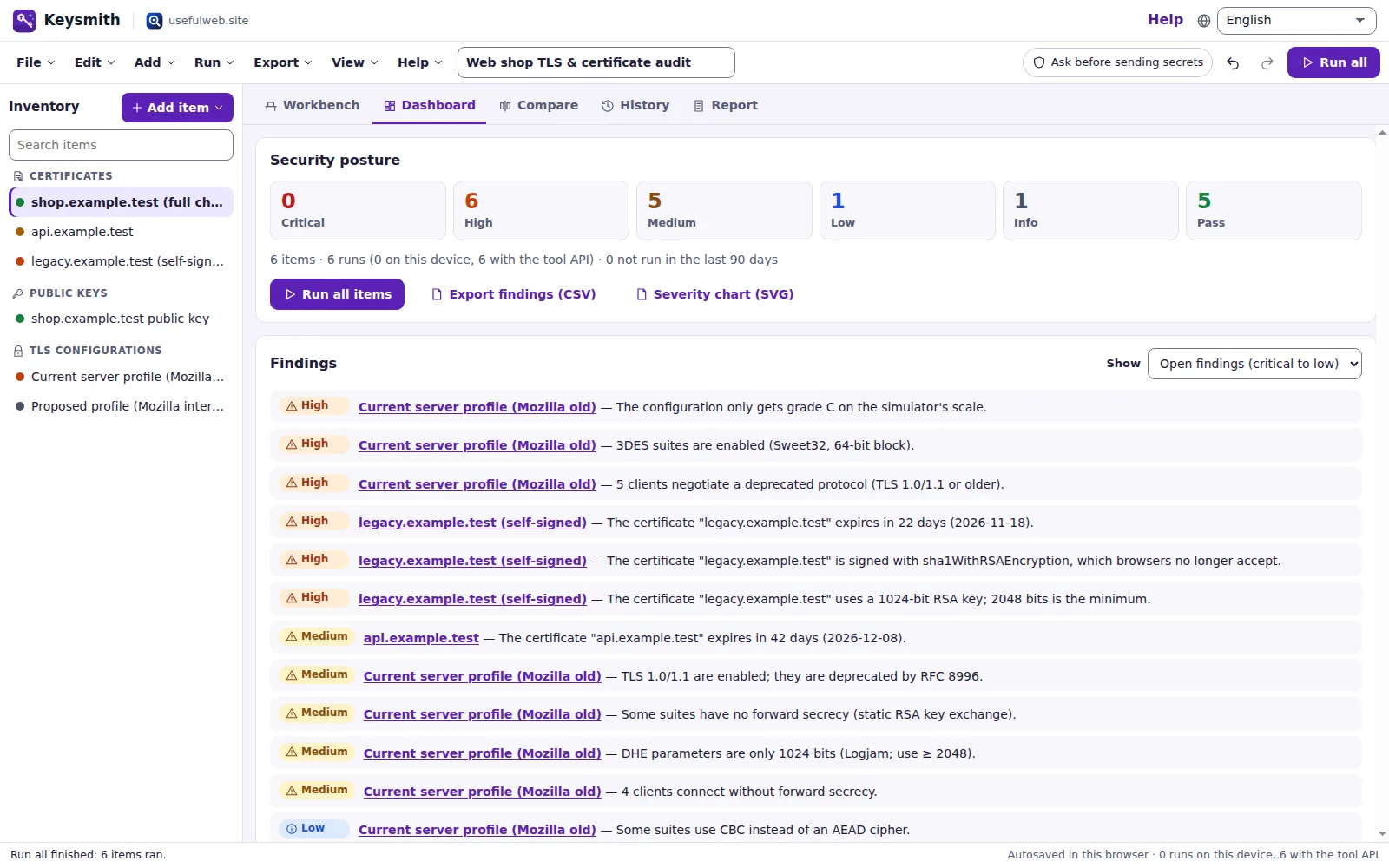
Typical findings in this template:
- The certificate "legacy.example.test" is signed with sha1WithRSAEncryption, which browsers no longer accept. (High)
- The certificate "legacy.example.test" uses a 1024-bit RSA key; 2048 bits is the minimum. (High)
- 3DES suites are enabled (Sweet32, 64-bit block). — from the old TLS profile (High)
Each finding starts with the item name. Click it to jump to that item in the Workbench.
3. Check the timeline and export reminders
Further down, Expiry and review timeline draws every certificate expiry and every review date on one line from today. Red dots are due within 30 days, amber within 60.
Click Reminders (.ics) to download a calendar with one all-day event per deadline. Each event has an alarm 30 days before (change the lead time in File → Project settings…). Import the file into Outlook, Google Calendar or Apple Calendar.
4. Key and certificate pairs
Key and certificate pairs says: “shop.example.test public key” is the public key of “shop.example.test (full chain)”. Keysmith compares the SPKI SHA-256 fingerprint that the key inspector reports with the one of every inspected certificate. When you renew a certificate with a new key, this line is the quickest proof that the right key went into the HSM or the server config.
5. Look at one item
Click legacy.example.test (self-signed) in the inventory. The Workbench shows the PEM, the owner and the Review by date, then Run with the Inspect certificate button. The chip under the button says where it runs: Uses the usefulweb.site tool API — certificates are public data.
Results shows the run of the X.509 Certificate Inspector: summary, metrics such as Days remaining and Signature algorithm, the findings, and under Tool output the full result of the tool.
Next steps
- Read Secrets stay on your device to see what is sent where.
- Compare the two TLS profiles in TLS scenarios and changes over time.
Ready to try it?